A screenshot is pixels. Your agent needs facts.
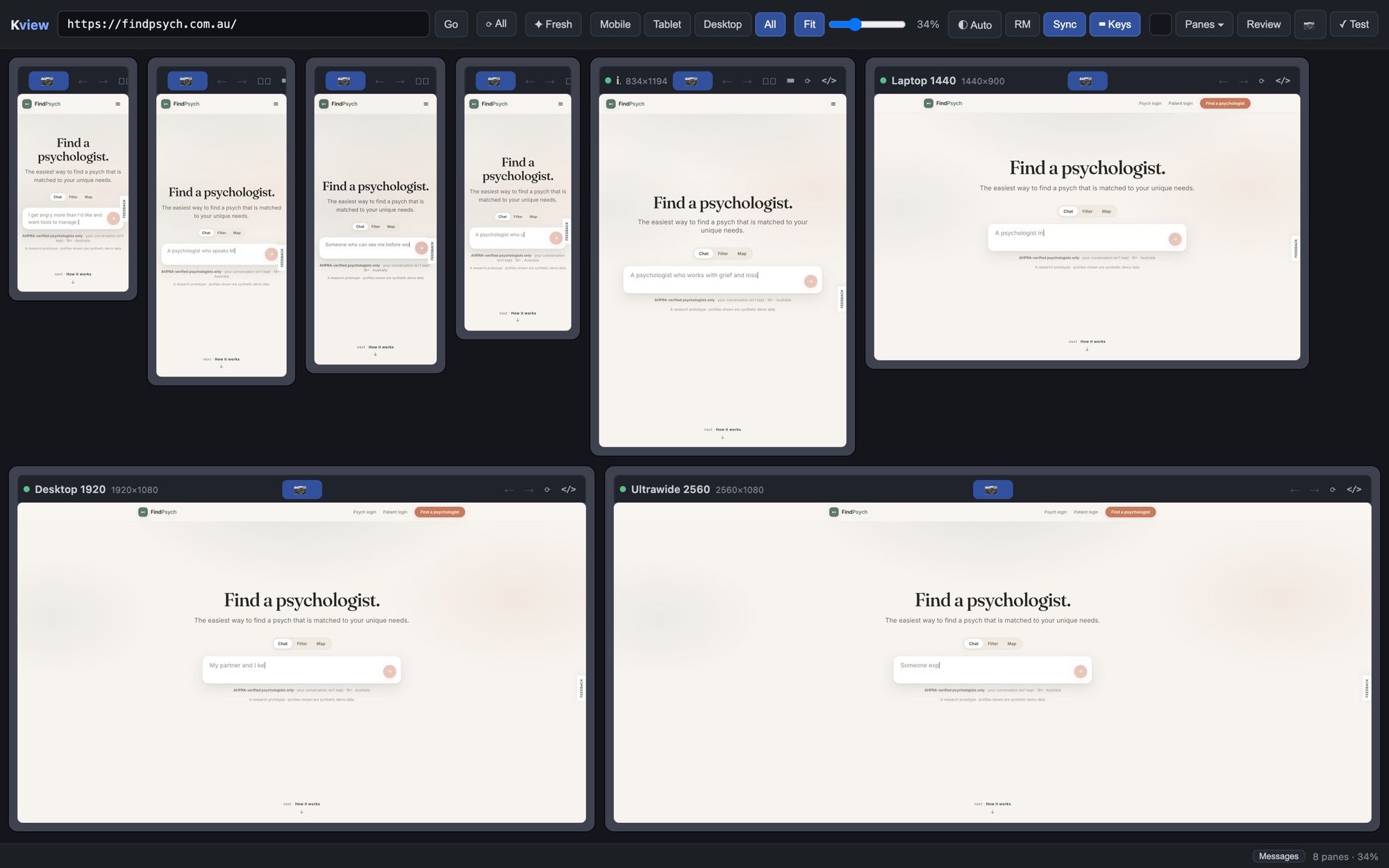
Kview shows your site on every phone, tablet and desktop at once. When you capture what’s wrong, it records the device, the page, its state at that moment, and the exact element and CSS rule you pointed at, so your coding agent can fix the right thing the first time.
Free betaApple SiliconmacOS 13 or later
On your phone? Email yourself the link for your Mac.
Your agent writes the code in seconds. Explaining what’s wrong with it still takes you minutes.
Checking a change on mobile is still manual, and each step loses something your agent needs.
Narrow the browser, or open the device toolbar
One device at a time, and a narrowed window is still desktop Chrome: desktop user agent, a mouse, no on-screen keyboard.
⌘⇧4 and drag
Screenshot 2026-10-22 at 08.41.12.pngThe file doesn’t say which device, which width, which URL or how far down the page you were.
Draw an arrow in Preview
The arrow points at pixels. Nothing says which element they belong to.
Drag it into the chat and describe it
“The button under the search box wraps on mobile.” Which button, which phone, which breakpoint?
The agent guesses
It searches for “button”, picks a media query and changes a rule. Often the wrong one.
Check every device again, by hand
Fixed on the iPhone you checked. Still broken on the Galaxy you didn’t.
Same five moves. Nothing lost on the way.
- 01 · See
Every device, one URL.
Type
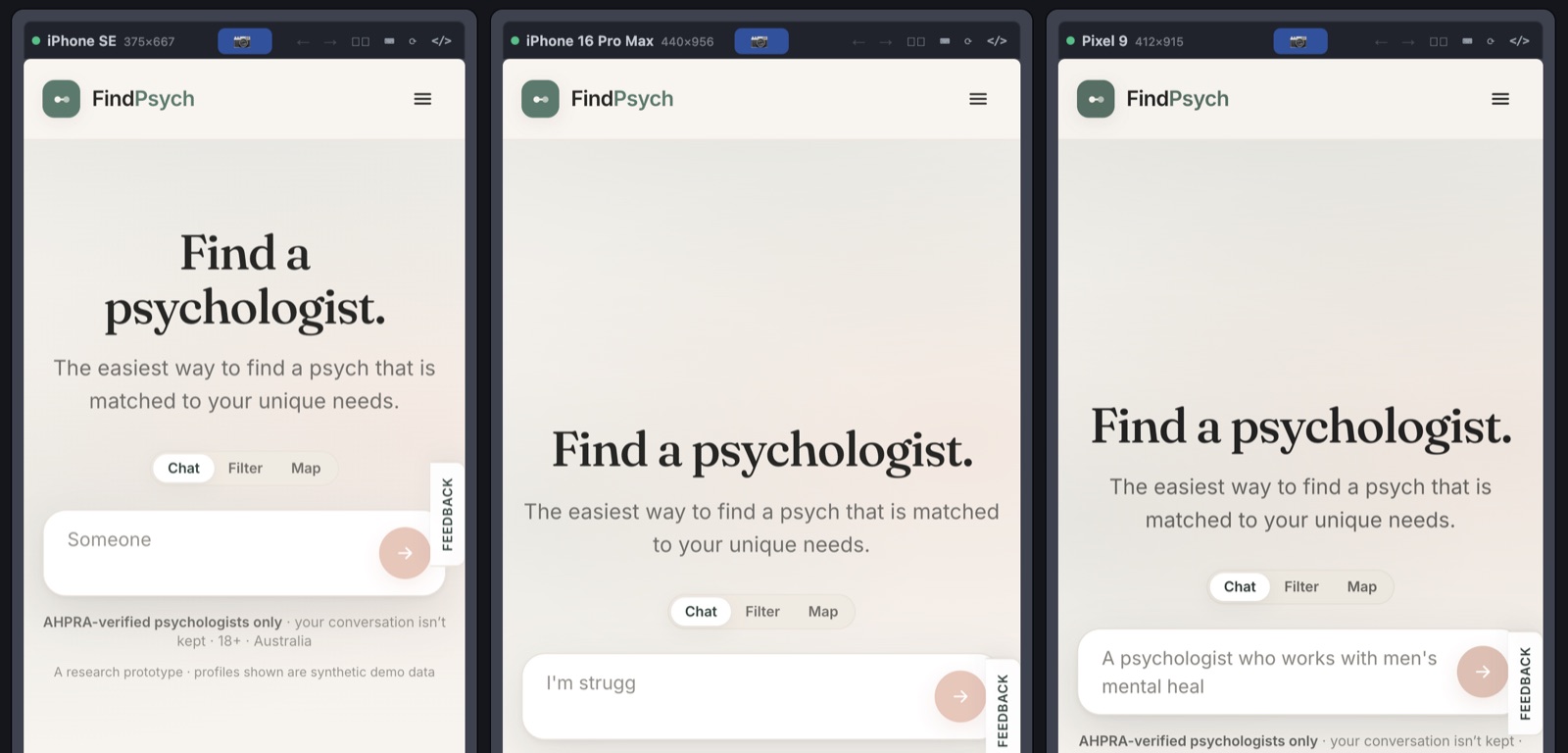
localhost:3000or a live address once. Ten devices load it side by side, each properly emulated: the phone’s user agent and Client Hints, its pixel ratio, touch and no hover, and an on-screen keyboard that rises when a field takes focus. Click a link in one and every pane follows.Instead of one narrowed browser window at a time.
- 02 · Capture
One click, and it knows what it’s looking at.
The camera on a pane captures what that device shows at its real resolution, and writes down the page and its state at that instant.
- device, viewport, pixel ratio, orientation
- URL, route, framework and router
- scroll position, colour scheme
- media queries matching at this width
- console errors, keyboard up or down
Instead of a file called “Screenshot 08.41.12”.
- 03 · Mark
Point at the element, not the pixels.
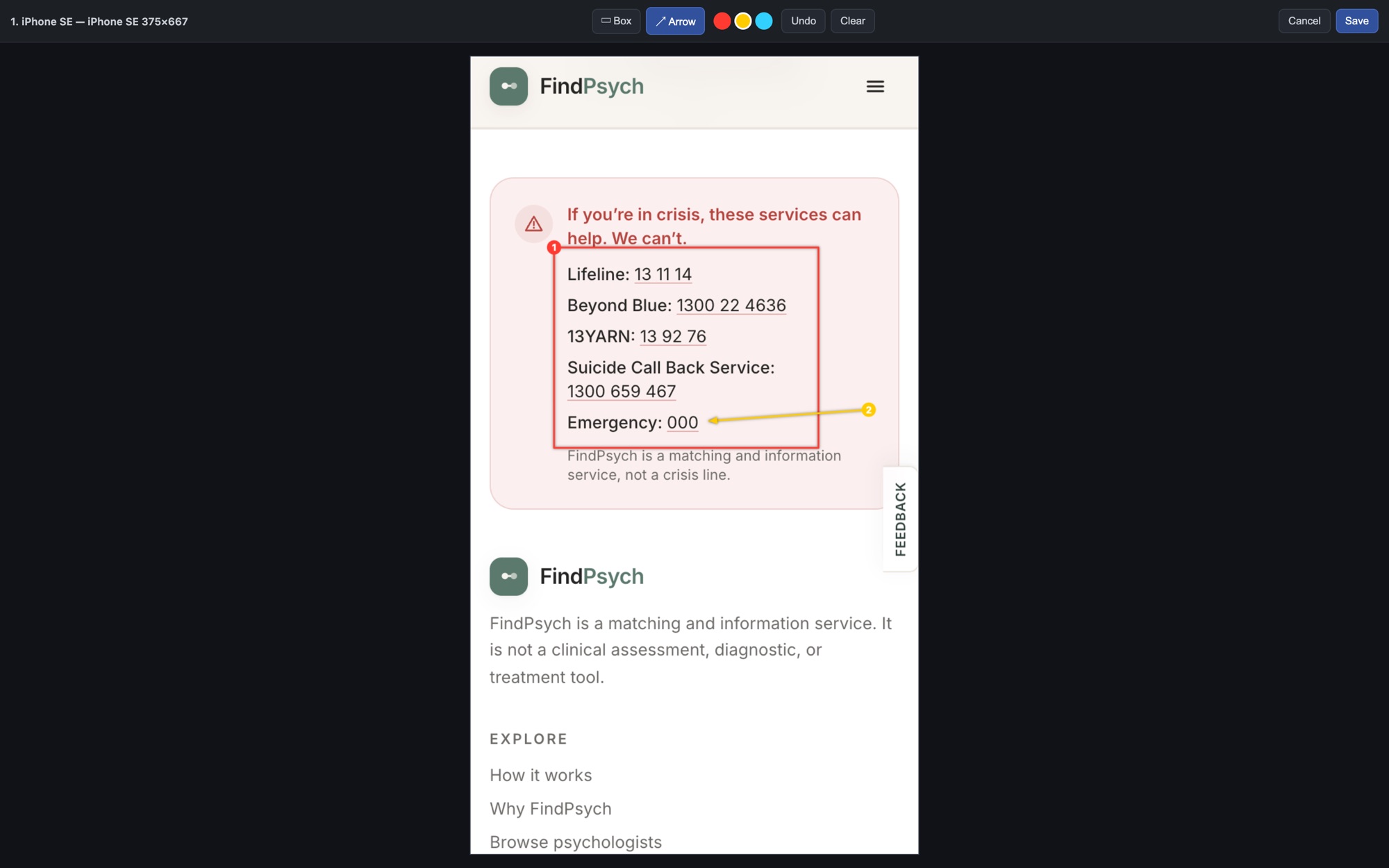
Draw a box or an arrow. Kview resolves each numbered mark to the element underneath, from what it recorded at capture time.
- tag, selector, text and size
- its markup and computed styles
- the CSS rules applying, and the @media they sit in
- on React sites, the component that rendered it
Instead of an arrow on a picture.
- 04 · Note
Write what’s wrong. Kview already wrote where.
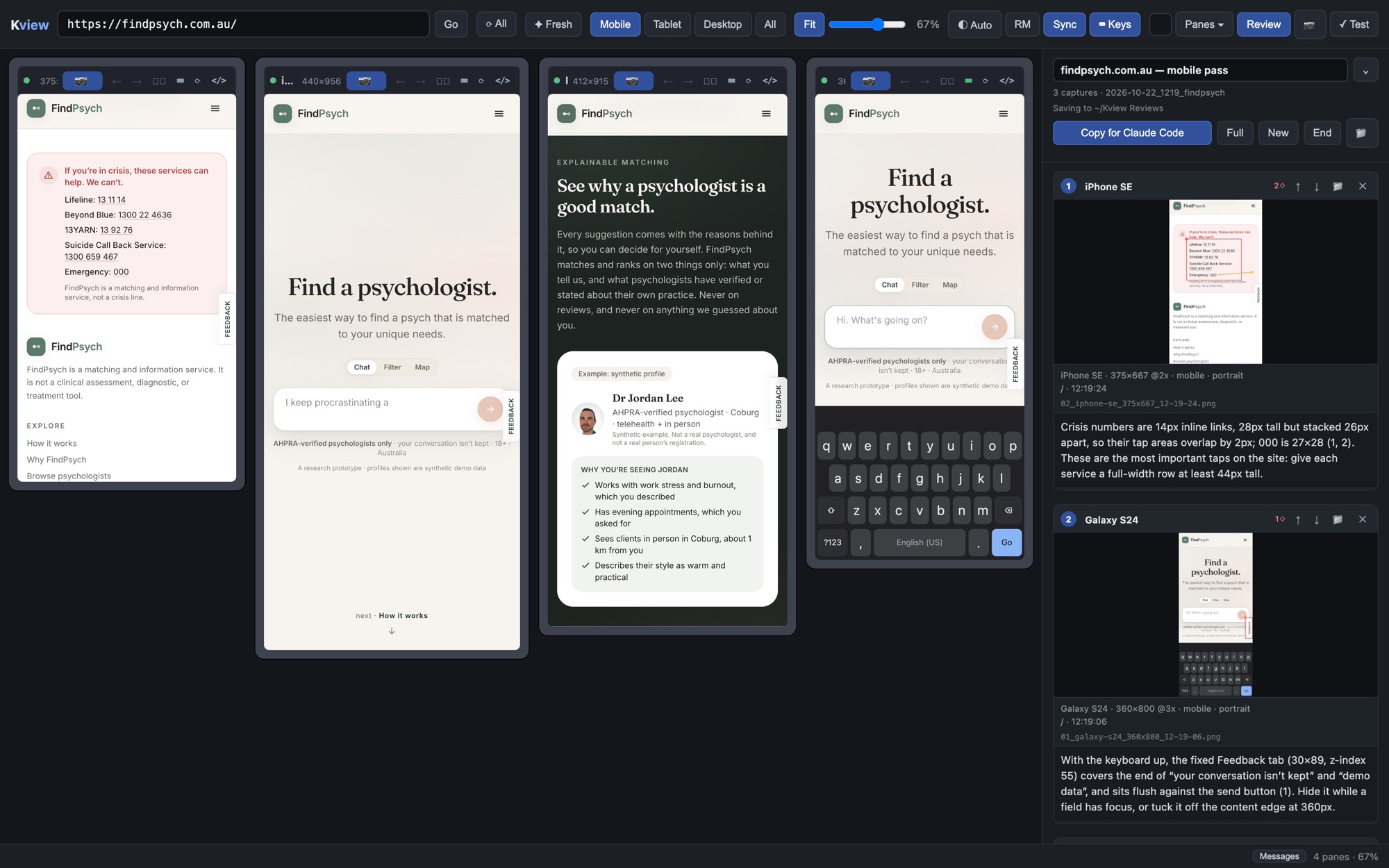
Your note only needs the judgement: “too tight”, “covered by the keyboard”, “should stack”. It saves as you type, into a review folder on your Mac you can reopen any time.
Instead of a paragraph about which page, which phone and which button.
- 05 · Hand over
One paste. Every fact.
Copy for Claude Code puts a short prompt on your clipboard that points at
review.md. Your agent reads each capture with its context and edits the rule that’s actually applying. Press ⟳ All and check every device again at once.Instead of a guess, and another round-trip.
What your agent gets from each.
| Fact | A screenshot | A Kview capture |
|---|---|---|
| The device | ||
| The image | Pixels | At the device’s true resolution |
| Device, CSS width, pixel ratio | — | e.g. Galaxy S24, 360×800 @3x, mobile UA |
| The page | ||
| URL and route | — | As the page reported it |
| Framework and styling | — | Next.js, React, Vue, Svelte… Tailwind, CSS Modules… |
| Its state at that moment | ||
| Scroll position | — | Which slice of the page is in view |
| Breakpoints in play | — | The media queries matching at that width |
| Console | — | Errors and warnings at capture |
| On-screen keyboard | — | Up or down, the focused field, what it covers |
| What you pointed at | ||
| The element | An arrow on pixels | Tag, selector, size and markup |
| Why it looks like that | — | The CSS rules applying, with their @media |
| Where it lives in your code | — | The React component that rendered it (by name on a dev build) |
review.md, written for you as you go.
Every capture becomes a section with its image path and three labelled levels: the Page, the Screenshot (its state at that moment) and the Annotations (what you marked). Your agent can open it again in later turns.
Excerpt from a real Kview review of findpsych.com.au
## 1. iPhone SE

- **Image:** `/Users/you/Kview Reviews/2026-10-22_1219_findpsych/02_iphone-se_375x667_12-19-24.png`

### Page
- **URL:** https://findpsych.com.au/
- **Route (as the page reported it):** `/`
- **Stack:** Next.js (app router), React
- **Styling system:** Tailwind CSS (utility classes)

### Screenshot
- **Device:** iPhone SE — 375×667 CSS px @2x, mobile UA, portrait
- **Visible region:** 5762px → 6429px of 6930px (scrolled 5762px down)
- **Colour scheme in effect:** dark
- **On-screen keyboard:** emulation on, keyboard down (no text field focused at capture)
- **Media queries active at this width:** `(max-width: 640px)`, `(max-width: 1023px)`, `screen`, `(hover: none), (pointer: coarse)`
- **Console at capture:** no errors or warnings

### Annotations
- **1.** (box) `<a>` in `<x>`
    - text: "000"
    - selector: `div.flex.items-start > div > ul.mt-2.5.flex > li:nth-of-type(5) > a.inline-block.py-1`
    - box: 27×28px at (164, 292) in the viewport
    - computed: display: inline-block; fontSize: 14px; fontFamily: Inter
    - markup: `<a class="inline-block py-1 -my-1 underline decoration-crisis/40 underline-offset-2 hover:text-crisis" href="tel:000">000</a>`
    - CSS rules applying (8):
        - `.-my-1` { margin-top: -0.25rem; margin-bottom: -0.25rem }
        - `.inline-block` { display: inline-block }
        - `.py-1` { padding-top: 0.25rem; padding-bottom: 0.25rem }
        - …
- **2.** (arrow →) `<ul>` in `<x>`
    - text: "Lifeline: 13 11 14 Beyond Blue: 1300 22 4636 13YARN: 13 92 76 …"
    - box: 257×144px at (81, 172) in the viewport
    - CSS rules applying (8):
        - `.flex-wrap` { flex-wrap: wrap }
        - `.gap-y-1\.5` { row-gap: 0.375rem }
        - …

### Note
> Crisis numbers are 14px inline links, 28px tall but stacked 26px apart, so their tap areas overlap by 2px; 000 is 27×28 (1, 2). These are the most important taps on the site: give each service a full-width row at least 44px tall.
localhost to production
Every pane is a real browser view, not an iframe, so dev servers and sites that refuse to be framed both work.
Stays on your Mac
Reviews are files in a folder you choose. Kview sends no screenshots, URLs or page content anywhere: Privacy Policy.
Secrets left out
Captures never record what’s typed into fields, or credentials in URLs.
Any agent
Copy for Claude Code, or copy the full markdown for Codex, Cursor or anything that reads files.
- Open the .dmg and drag Kview into Applications.
- Sign in through your browser: an emailed link or code, Google or GitHub.
- Type your URL. Every device loads it.